
How to enable Two-Factor Authentication (2FA)
- Published on 24 June 2026
- | Updated on 24 Jul 2026
- | 2 min read
Two-Factor Authentication (2FA) adds an extra layer of security to your Fintrix Markets Client Portal by requiring a verification code from an authenticator app each time you log in.
Before you begin:
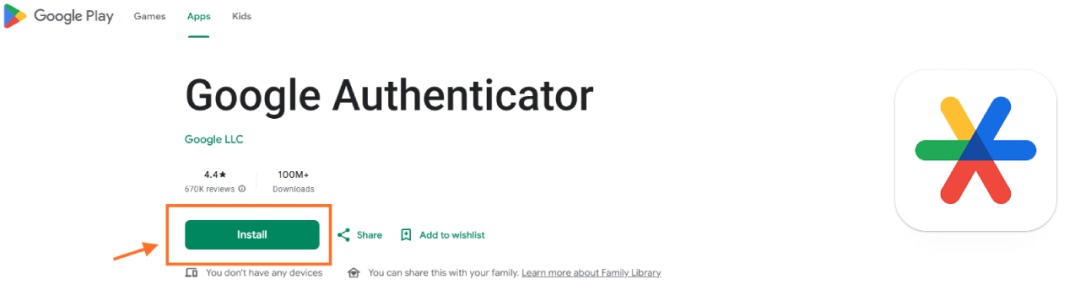
If you do not already have an authenticator app installed on your mobile device, download one first. We recommend Google Authenticator, available for both Android and iOS.
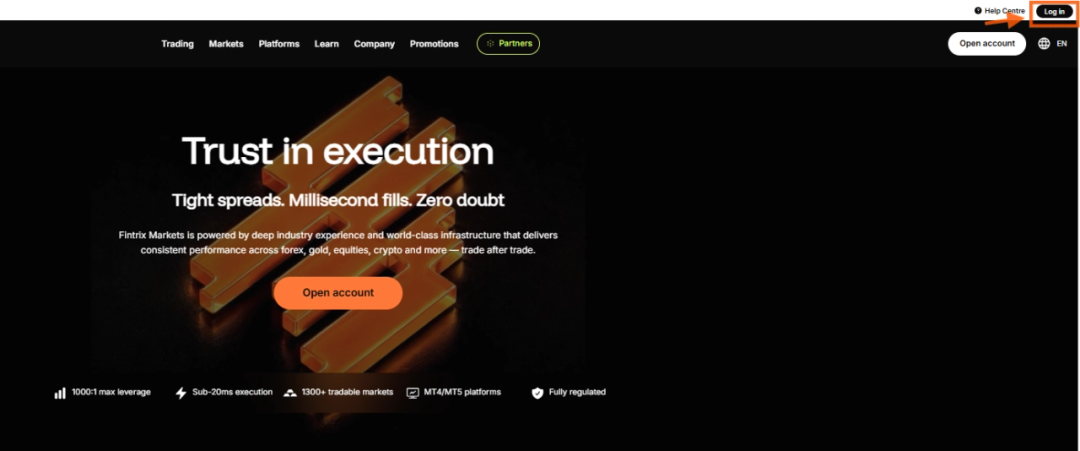
1. Log in to your account
Visit the Fintrix Markets website and click Log in in the top-right corner of the page.
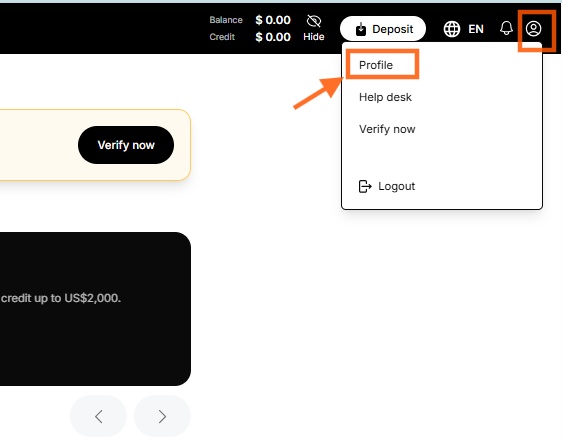
2. Open your Profile
Once logged in:
- Click the Profile icon in the top-right corner.
- Select Profile from the dropdown menu.
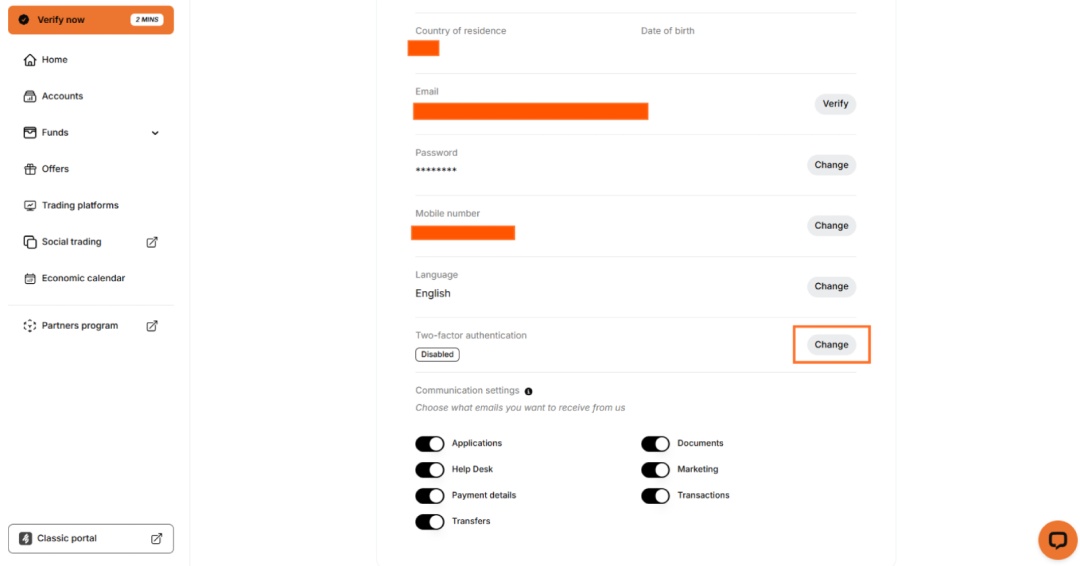
3. Open the Two-Factor Authentication settings
On your Profile page, locate the Two-factor authentication section and click Change.
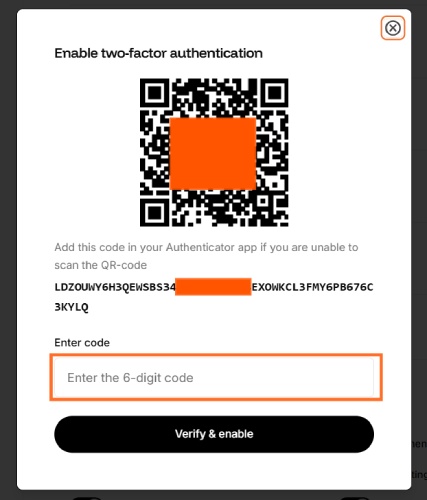
4. Scan the QR code
A setup window will appear displaying a QR code and a manual setup key.
Open your authenticator app on your mobile device.
If you don’t already have an authenticator app installed, download Google Authenticator from the App Store or Google Play before continuing.
5. Add your Fintrix Markets account
In your authenticator app:
- Tap the + button.
- Select Scan a QR code.
- Scan the QR code displayed in the Client Portal.
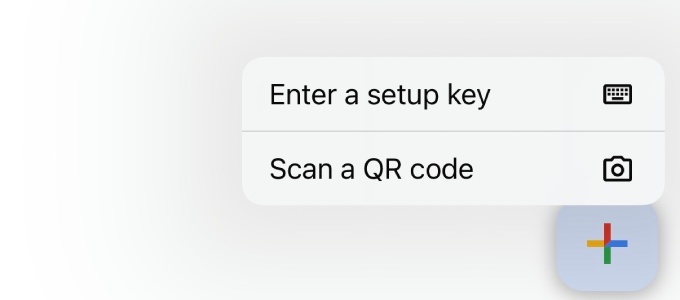
Alternative: If you cannot scan the QR code, choose Enter a setup key and manually enter the key displayed beneath the QR code.
6. Retrieve your verification code
Once the account has been added, your authenticator app will generate a 6-digit verification code.
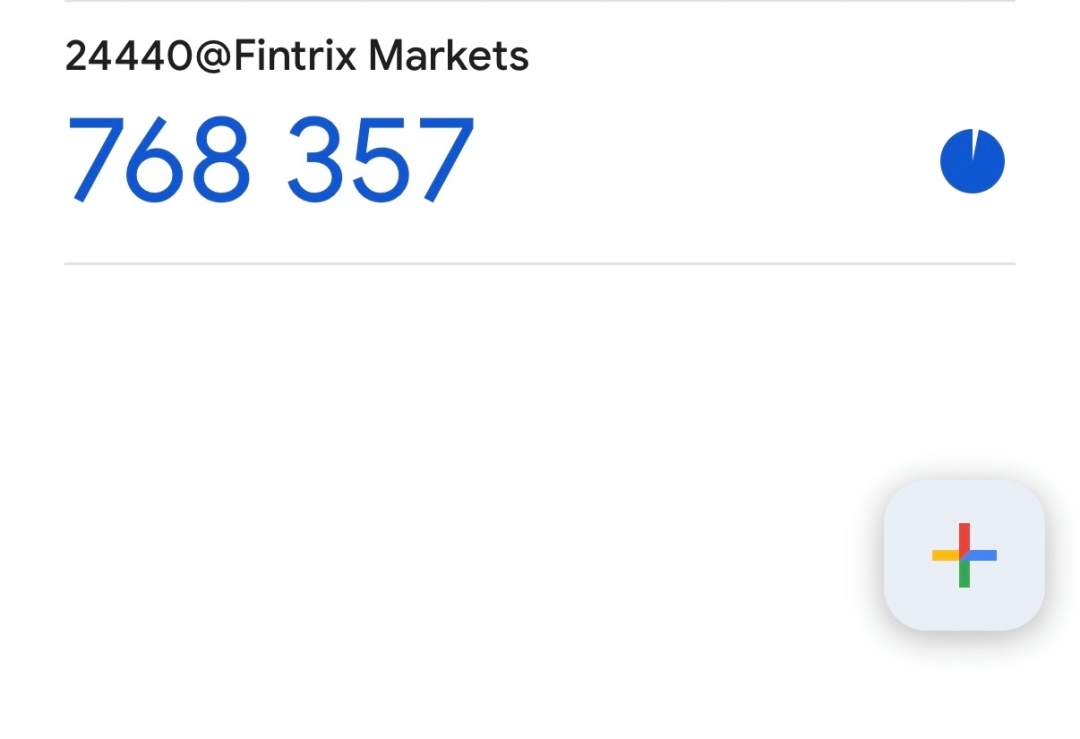
Important: The code refreshes every 30 seconds, so make sure you enter the current code before it expires.
7. Verify and enable Two-Factor Authentication
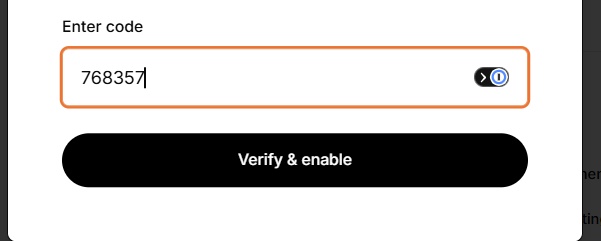
Return to the Client Portal and enter the 6-digit verification code into the Enter code field.
Click Verify & enable.
8. Confirmation
Once successfully enabled:
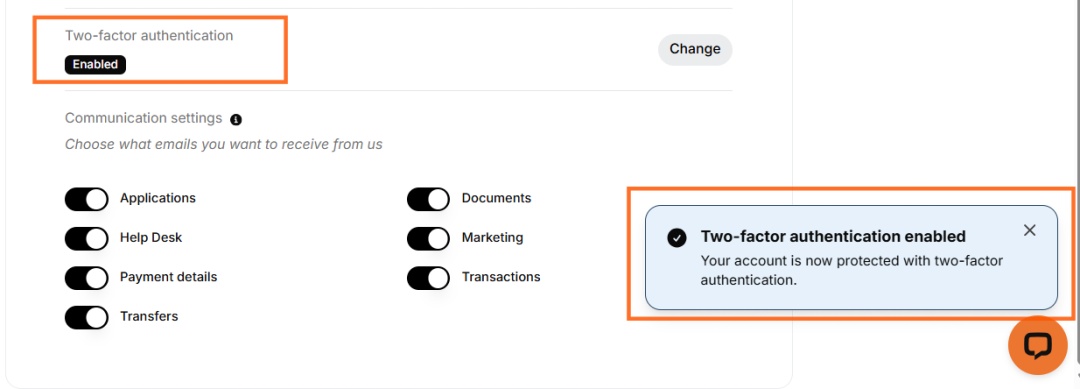
- A confirmation message will appear stating “Two-factor authentication enabled.”
- The Two-factor authentication status on your Profile page will change to Enabled.
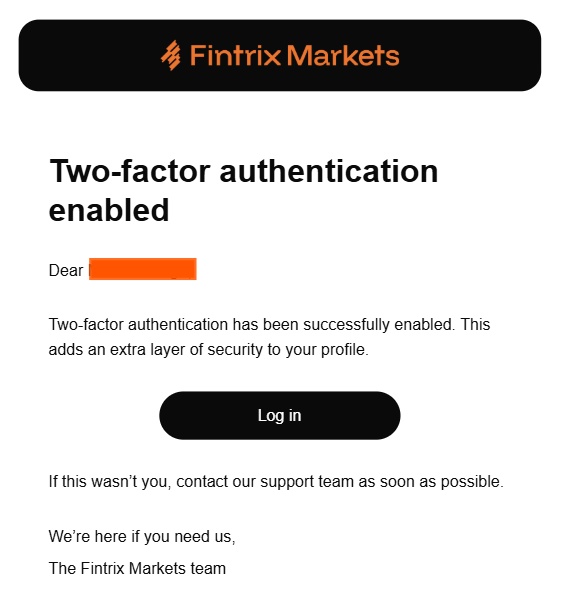
You will also receive a confirmation email informing you that Two-Factor Authentication has been successfully enabled on your account.
Security Notice: If you did not enable Two-Factor Authentication yourself, please contact the Fintrix Markets Support Team immediately via Live Chat or email at support@fintrixmarkets.com