How to change my Fintrix Markets password
- Published on 19 June 2026
- | Updated on 24 Jul 2026
- | 1 min read
Follow the steps below to change the password for your Fintrix Markets Client Portal.
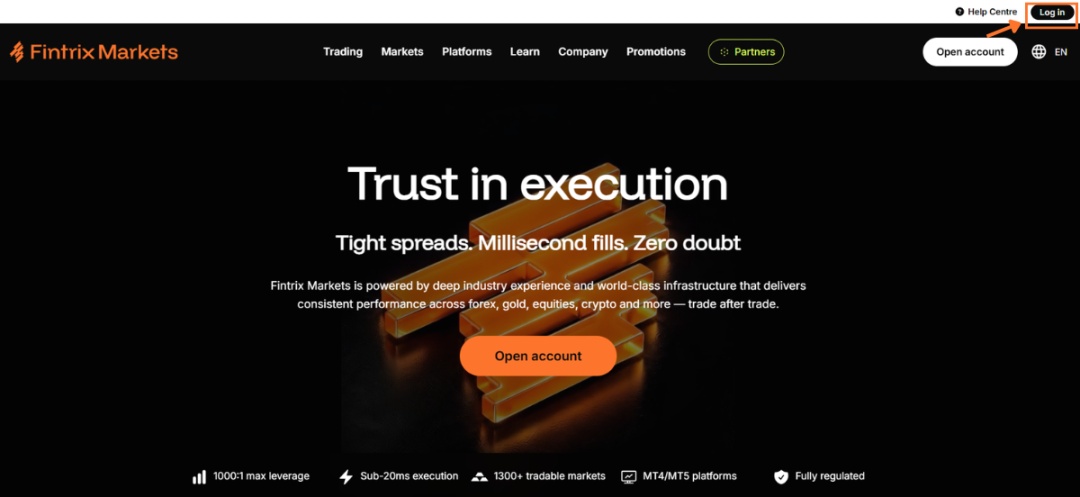
1. Log in to your account
Visit the Fintrix Markets website and click Log in in the top-right corner of the page.
2. Open your profile
Once logged in:
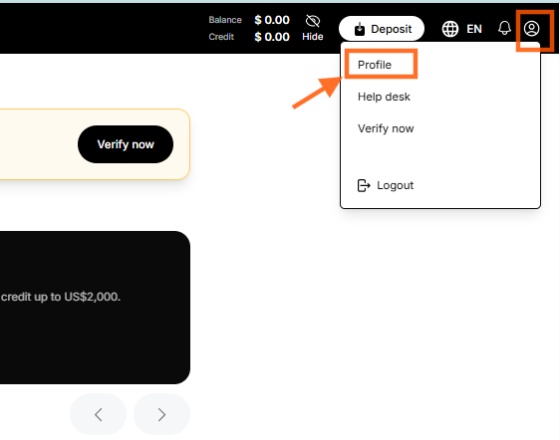
- Click the Profile icon in the top-right corner.
- Select Profile from the dropdown menu.
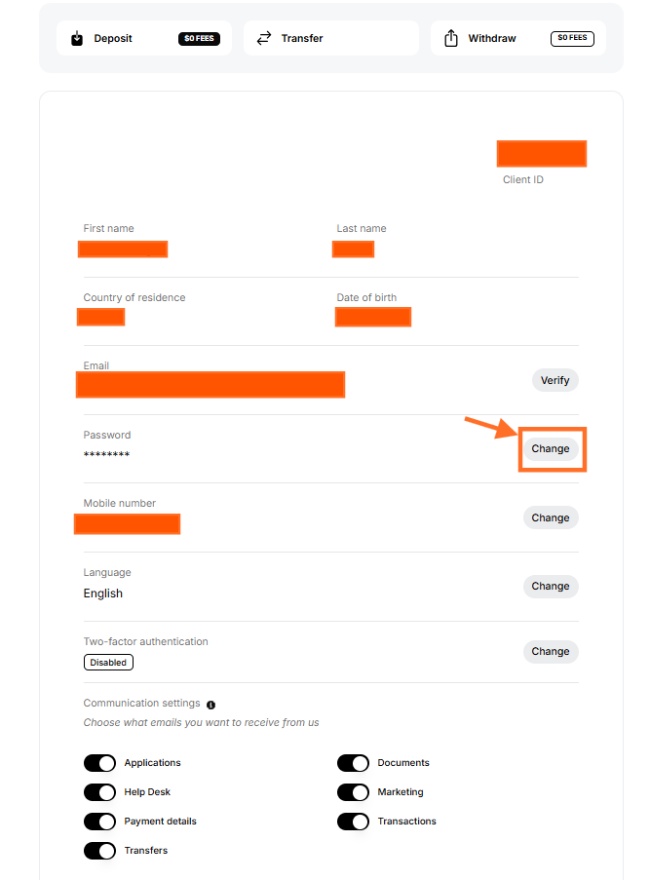
3. Select “Change” next to Password
On your Profile page, locate the Password section and click Change.
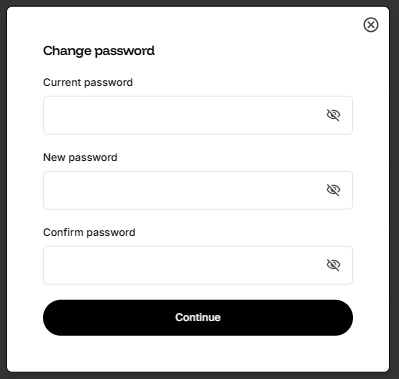
4. Enter your password details
A Change password window will appear. Enter:
- Your current password
- Your new password
- Your new password again in the Confirm password field
5. Meet the password requirements
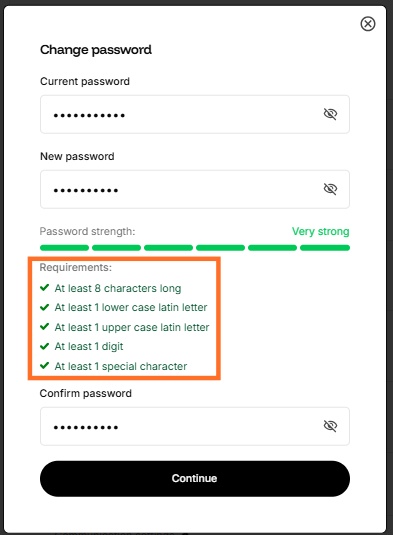
Password requirements:
- ✓ At least 8 characters
- ✓ At least one lowercase letter
- ✓ At least one uppercase letter
- ✓ At least one number
- ✓ At least one special character
Once all requirements are met, click Continue.
6. Confirm the password change
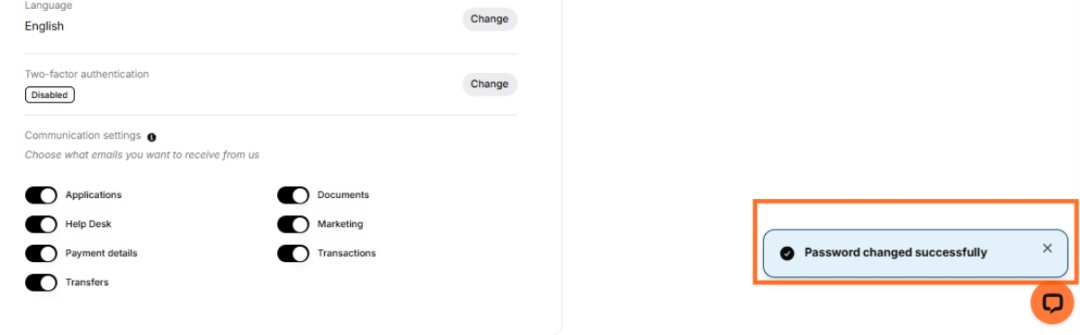
A confirmation message stating “Password changed successfully” will appear on the screen.
Your password has now been updated, and you can use it the next time you log in.
7. Check your confirmation email
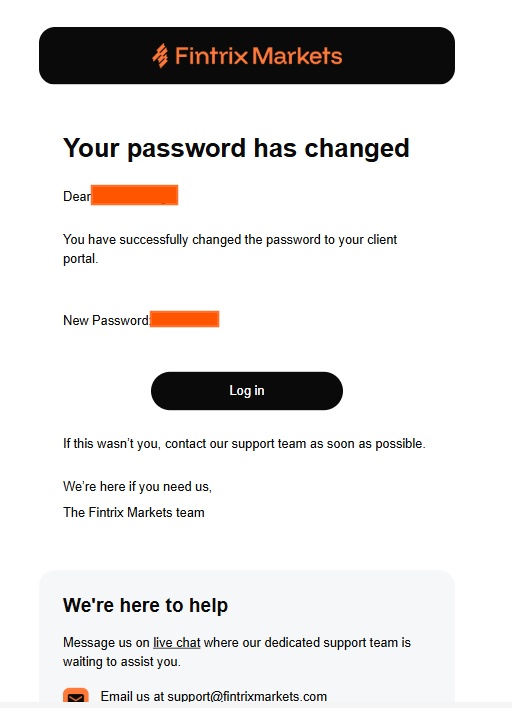
You will also receive an email confirming that your Client Portal password has been changed.
If you did not make this change, contact the Fintrix Markets Support Team immediately through Live Chat or by email at support@fintrixmarkets.com.