How to update my personal details
- Published on 24 June 2026
- | Updated on 24 Jul 2026
- | 1 min read
If your personal information has changed (such as your address, phone number, or other details), you can submit a request directly through the Fintrix Markets Client Portal.
You can also reach our Support team directly by email if you prefer not to use the Help Desk.
1. Log in to your account
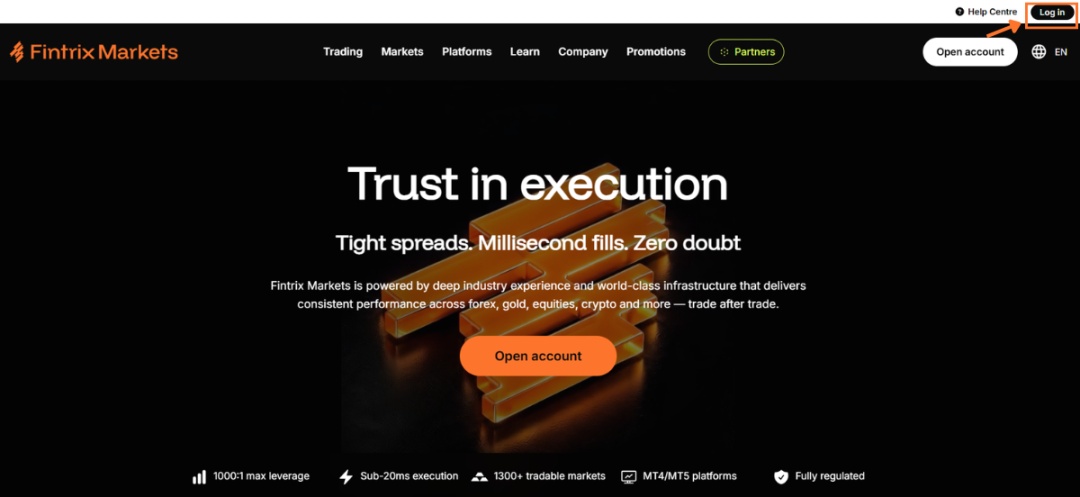
Visit the Fintrix Markets website and click Log in in the top-right corner of the page.
2. Open the Help Desk
Once logged in:
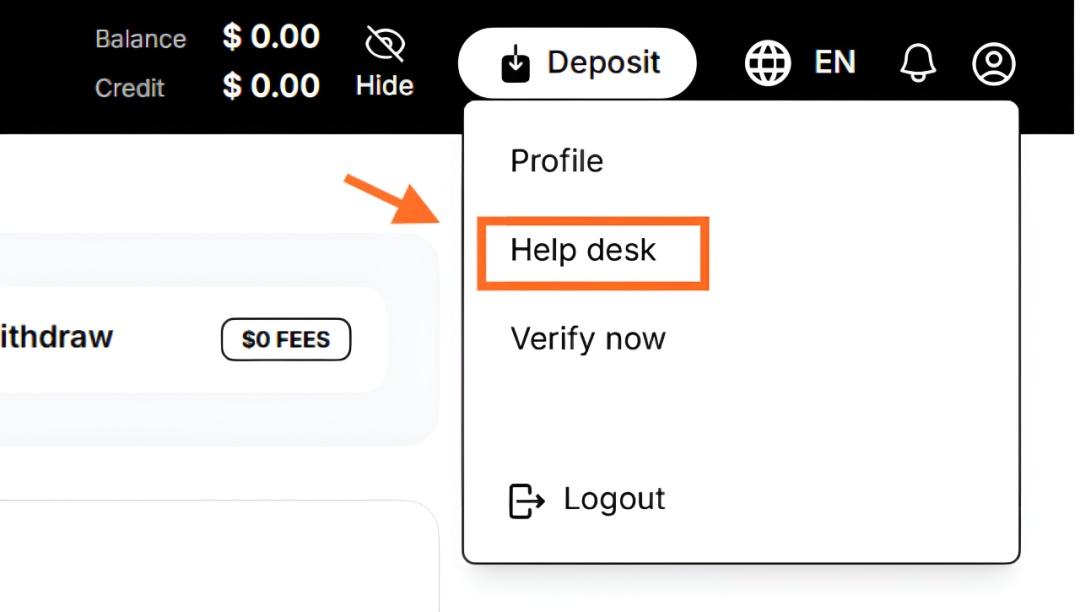
- Click the Profile icon in the top-right corner.
- Select Help desk from the dropdown menu.
3. Create a new support ticket
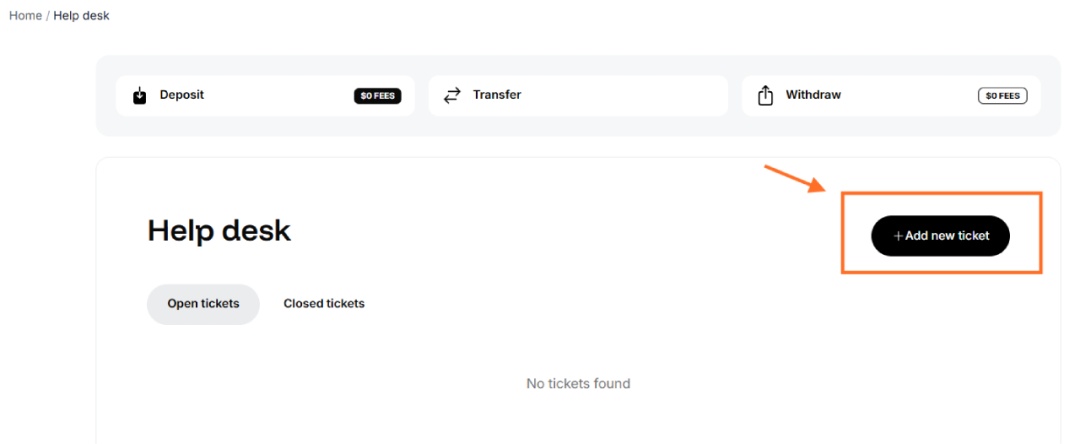
On the Help Desk page, click + Add new ticket.
4. Complete the ticket details
Fill in the required fields:
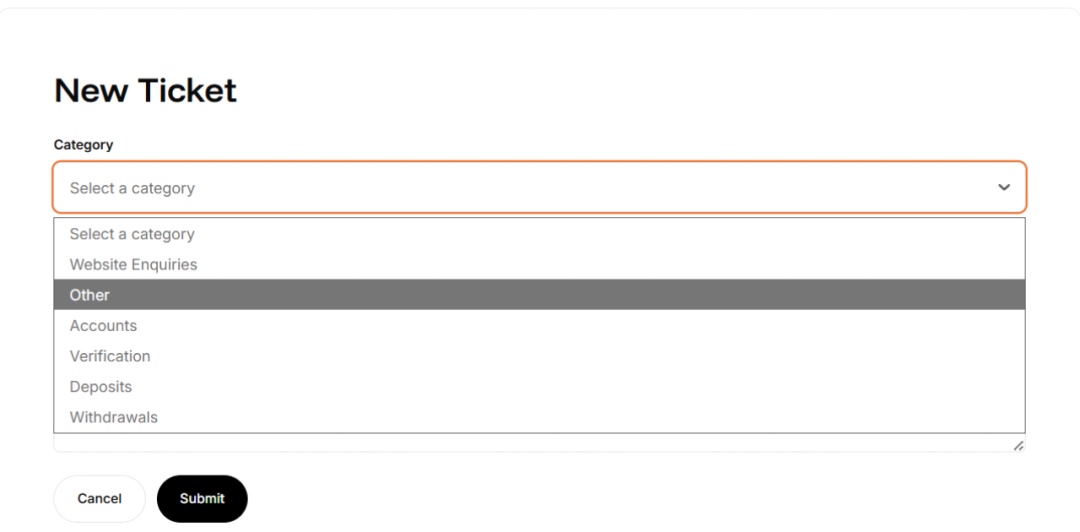
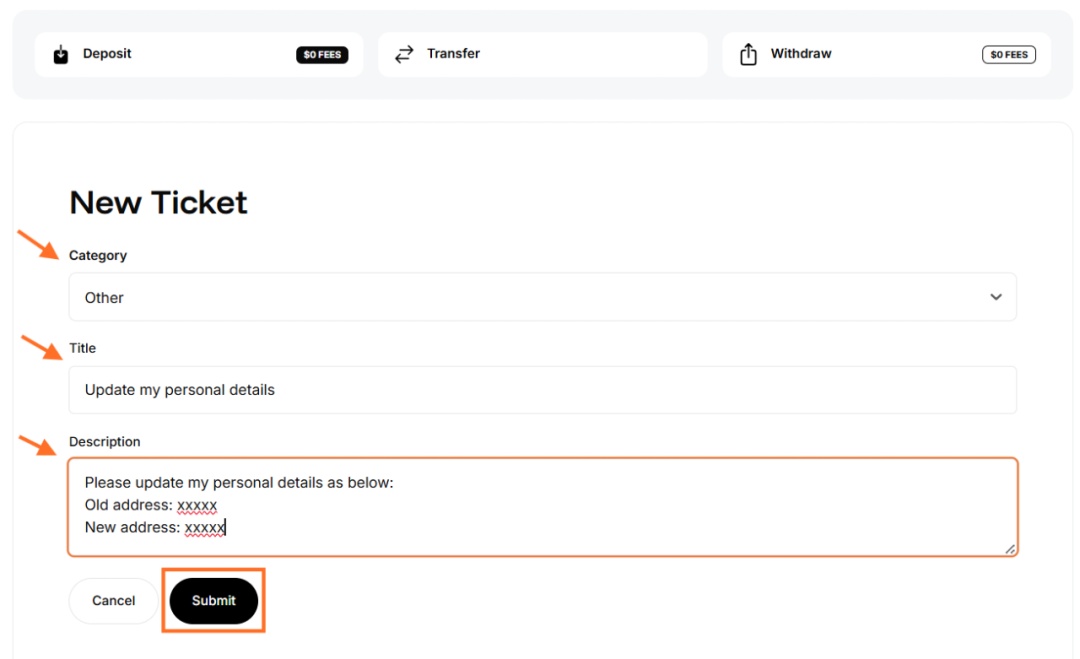
- Category – Select the category that best matches your request (for example, Other if updating personal details).
- Title – Enter a short summary of your request (e.g. Update my personal details).
- Description – Clearly explain the changes you would like us to make.
Example:
Please update my personal details as below:
Old address:
123 Old Street, London, UK
New address:
456 New Avenue, Manchester, UK
Tip: Include all relevant information to help our team process your request as quickly as possible.
Once completed, click Submit.
5. Track your request
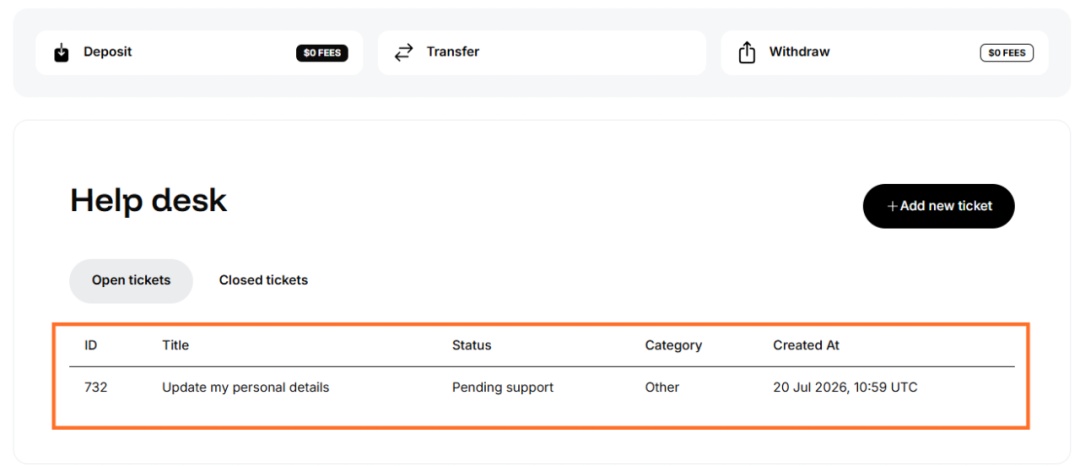
After submitting your ticket, it will appear in the Open tickets section of the Help Desk.
Here you can monitor:
- Ticket ID
- Title
- Current status
- Category
- Date and time the ticket was created
Your ticket will remain visible until it has been resolved by our Support Team.